
Invoices
Generate invoices, record payments, and track overdue bills
Overview
Invoices bill residents for room, enrolled services, medicine, and extra expenses. Drafts stay hidden from the portal until you confirm. Status flow: Draft → Pending → Paid (or Overdue / Cancelled).
app.wellicle.com
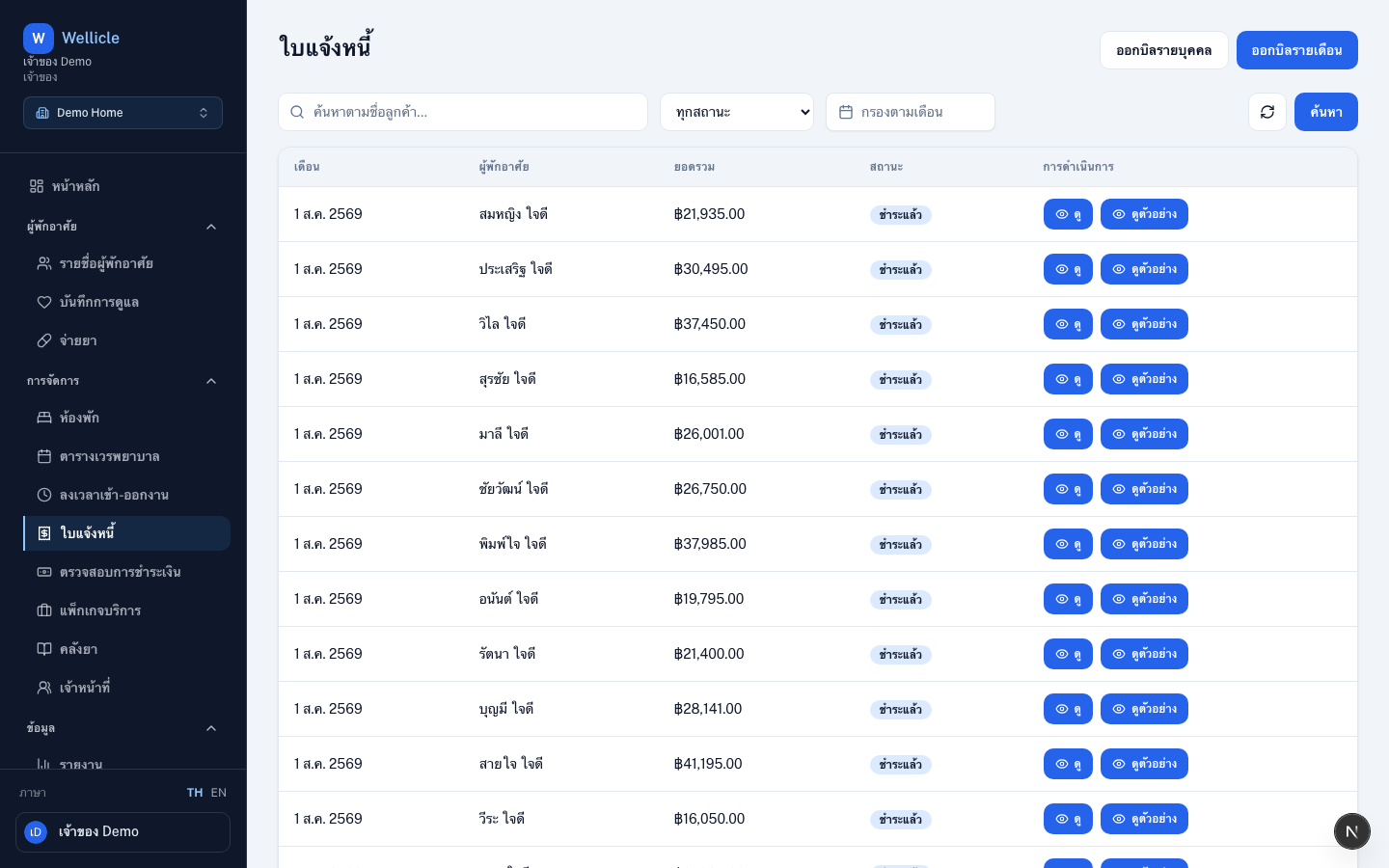
Invoice list
Open /org/{slug}/invoices. Filter by status (Draft, Pending, Paid, Overdue, Cancelled) or month. Use Preview to open a printable invoice.
Generate or create
Create or generate
Use Generate monthly for all active clients, or Individual invoice for one client
Save draft with receipt totals
On create/edit, set discount, VAT rate (default 7%), and withholding tax. Use Save draft to keep the invoice hidden from the portal
Review and edit lines
Room, enrolled services, and medicine lines are calculated automatically. Add expenses or services, or recalculate from enrollments
Confirm and send
Confirm and send moves the invoice to Pending and notifies the family/client. Net total = subtotal − discount + VAT − withholding tax
Monthly invoices can also be generated automatically by cron when configured.
Line items and extra expenses
Open Edit line items on a Draft or Pending invoice:
- Add a free-form expense (description, amount, fee type)
- Add a line from the client’s active service enrollments
- Recalculate (Draft only) to rebuild lines from room + services + medicine
- Adjust discount, VAT %, and withholding tax % on the receipt totals panel
Preview / print PDF
Open /org/{slug}/invoices/{id}/preview (or Preview from the list/detail). Use Print / Save as PDF in the browser.
Payments / overdue / cancel
Open an invoice (/org/{slug}/invoices/{id}) to record a payment yourself, or review slips families submitted. Filter the list for overdue status. Staff can cancel Draft, Pending, or Overdue invoices that have no pending or verified payments.
Families pay from the portal with PromptPay QR or a bank transfer, then upload a slip. Those submissions stay Waiting for review until staff confirm them on Payment reviews or on the invoice detail page. Only confirmed payments count toward Paid.
Set PromptPay IDs and bank accounts under Receiving accounts so the portal can show a QR and account numbers. PromptPay QR is generated from the ID; you can also upload a bank QR image.
Tips
- Family and clients can view and pay linked invoices in the portal after confirm (Pending and later)
- Use filters to focus on pending or overdue bills before month-end
- Confirm slips from Payment reviews so invoices move to Paid only after the transfer is checked